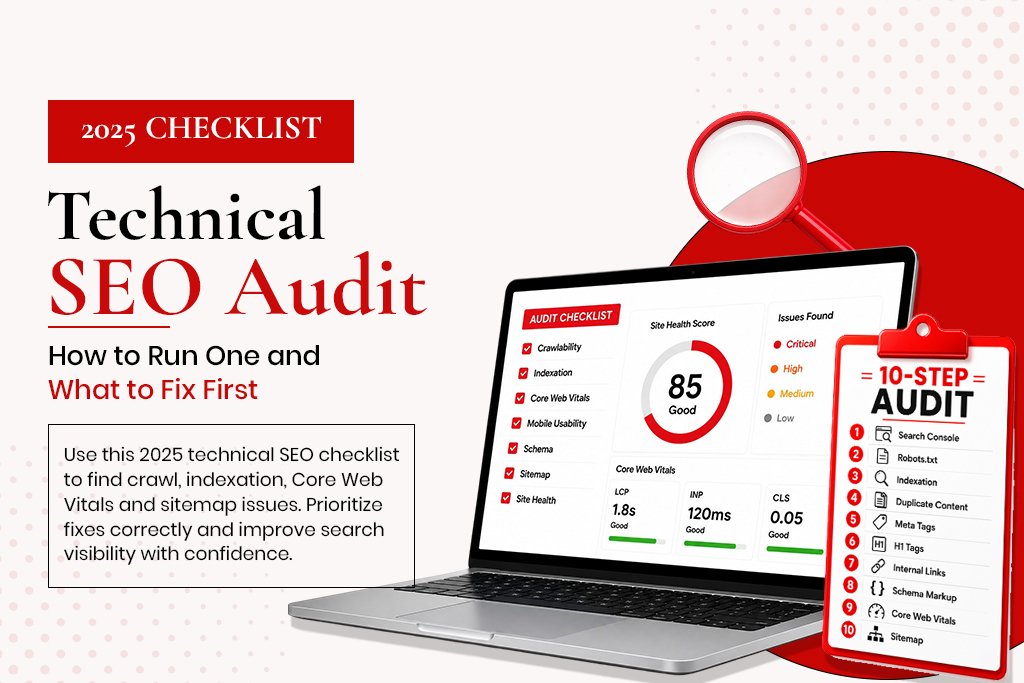
Technical SEO Audit: How to Run One and What to Fix First (2025 Checklist)
A technical SEO audit is a systematic review of your website’s technical infrastructure – the elements that determine whether search engines can find, understand and rank your pages. Not the content. Not the backlinks. The foundation underneath everything.
Most websites have technical SEO problems. The question is whether those problems are minor opportunities or active suppressors of ranking potential. A well-run audit tells you exactly which category every issue falls into, which ones to fix first, and what measurable improvement you can expect.
Tools You Need for a Technical SEO Audit
-
Google Search Console (free): the single most important tool. Shows crawl errors, indexation problems, Core Web Vitals data, mobile usability issues.
-
Google PageSpeed Insights (free): measures Core Web Vitals for mobile and desktop.
-
Screaming Frog SEO Spider (free up to 500 URLs): crawls your site the way Googlebot does, revealing broken links, missing meta tags, duplicate content and redirect chains.
-
Google’s Rich Results Test (free): checks whether pages have valid schema markup.
-
Ahrefs or SEMrush (paid, optional): useful for backlink analysis and competitive benchmarking.
The 10-Step Technical SEO Audit
Step 1: Check Google Search Console for Critical Errors
Open Search Console. Go to Coverage. Review every URL marked ‘Error.’ Common errors: server errors, redirect errors, URLs blocked by robots.txt that should not be blocked. Then check Core Web Vitals (mobile and desktop) and Mobile Usability.
Step 2: Verify Robots.txt
Navigate to yourdomain.com/robots.txt. Check it is not accidentally blocking important sections – a common mistake is a leftover development-era disallow rule. The most dangerous: ‘Disallow: /’ which blocks the entire site.
Step 3: Check Indexation
Type ‘site:yourdomain.com’ into Google. The number returned should roughly match the pages worth indexing. Significantly higher means thin or unwanted pages are indexed. Significantly lower means crawling or indexation problems are blocking important pages.
Step 4: Check for Duplicate Content
-
www vs non-www versions both accessible
-
HTTP and HTTPS versions both accessible
-
URLs with and without trailing slashes
-
Pagination creating near-duplicate pages
-
eCommerce filter parameters creating multiple similar URLs
Step 5: Audit Your Meta Tags
In Screaming Frog, check Page Titles and Meta Description tabs for missing, duplicate, too long, or too short tags.
Step 6: Check H1 Tags
Every page should have exactly one H1 containing the primary keyword.
Step 7: Check Internal Links and Crawl Depth
Check the Response Codes tab for 404s from internal links. Check Crawl Depth – pages beyond 3-4 clicks from the homepage receive less crawl frequency.
Step 8: Check Schema Markup
-
Homepage: Organization schema
-
Service pages: Service + FAQPage schema
-
Blog posts: Article + Author schema
-
Product pages: Product + AggregateRating schema
Step 9: Check Core Web Vitals in Detail
Run your three most important pages through PageSpeed Insights mobile view. Note which element is the LCP, whether JavaScript is slowing INP, and whether layout shifts are occurring.
Step 10: Check XML Sitemap
Navigate to yourdomain.com/sitemap.xml. Confirm it loads, includes important pages, and excludes noindexed or 404 pages. Submit to Search Console and Bing Webmaster Tools.
How to Prioritise the Issues You Find
Critical – Fix Within 24 Hours
-
Pages accidentally blocked from indexation
-
Site not available over HTTPS
-
Sitemap returning a 404
-
Core Web Vitals in ‘Poor’ range on homepage
High – Fix Within 1 Week
-
Broken internal links
-
Duplicate content without canonical tags
-
Missing meta titles or H1 tags
-
Mobile usability errors
Medium – Fix Within 1 Month
-
Schema markup missing from service and product pages
-
Thin indexed pages diluting domain quality
-
Images without alt text
-
Redirect chains
What to Do After the Audit
-
Create a spreadsheet with every issue, the page affected, priority level and the fix required.
-
Share Critical and High items with your developer immediately.
-
Implement Medium and Low items over the following month.
-
Re-run the audit after fixes – new issues may appear.
-
Submit updated sitemap and request indexing for previously blocked pages.
-
Check Search Console again in 4-6 weeks for improvement.
Frequently Asked Questions
How often should I run a technical SEO audit?
After every significant site change. Otherwise, comprehensive quarterly plus a lighter monthly Search Console check covers most sites well.
How long does a technical SEO audit take?
A small site (under 100 pages) done carefully takes 2-4 hours. A larger site with a full tool set takes 8-16 hours.
Can I do a technical SEO audit myself?
Yes, using the process above. The challenge is knowing what to look for and how to prioritise it correctly.
What is the most common technical SEO problem?
Core Web Vitals failing on mobile, missing or incorrect schema markup, and pages being indexed that should not be.