
Technical SEO Audit: How to Run One and What to Fix First (2025 Checklist)
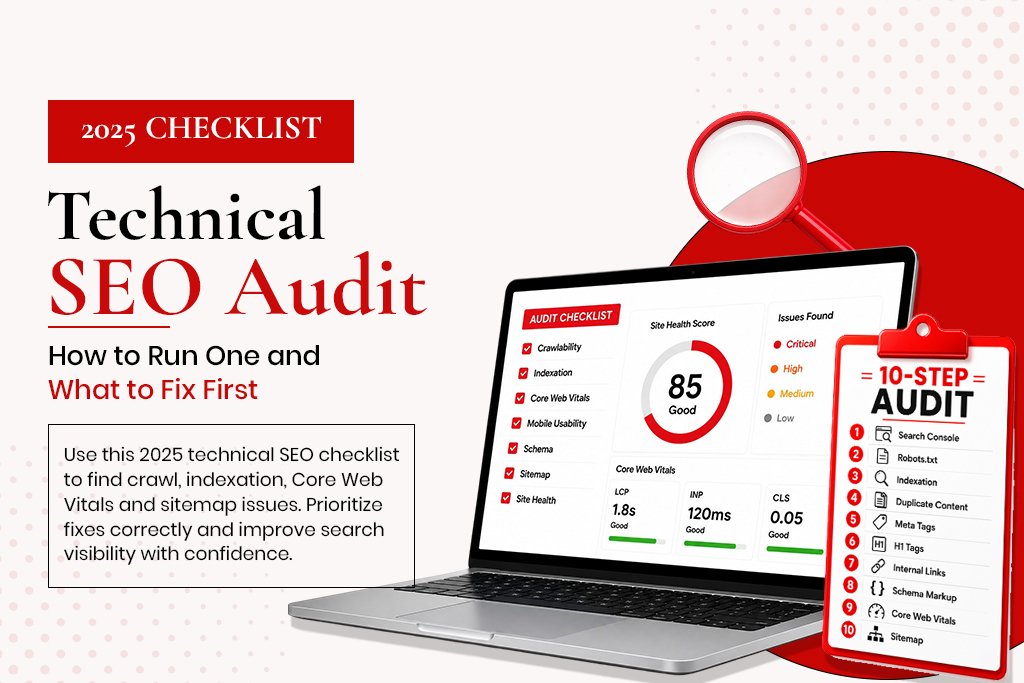
Technical SEO Audit: How to Run One and What to Fix First (2025 Checklist) A technical SEO audit is a systematic review of your website’s technical infrastructure – the elements that determine whether search engines can find, understand and rank your pages. Not the content. Not the backlinks. The foundation underneath everything. Most websites have technical SEO problems. The question is whether those problems are minor opportunities or active suppressors of ranking potential. A well-run audit tells you exactly which category every issue falls into, which ones to fix first, and what measurable improvement you can expect. Tools You Need for a Technical SEO Audit Google Search Console (free): the single most important tool. Shows crawl errors, indexation problems, Core Web Vitals data, mobile usability issues. Google PageSpeed Insights (free): measures Core Web Vitals for mobile and desktop. Screaming Frog SEO Spider (free up to 500 URLs): crawls your site the way Googlebot does, revealing broken links, missing meta tags, duplicate content and redirect chains. Google’s Rich Results Test (free): checks whether pages have valid schema markup. Ahrefs or SEMrush (paid, optional): useful for backlink analysis and competitive benchmarking. The 10-Step Technical SEO Audit Step 1: Check Google Search Console for Critical Errors Open Search Console. Go to Coverage. Review every URL marked ‘Error.’ Common errors: server errors, redirect errors, URLs blocked by robots.txt that should not be blocked. Then check Core Web Vitals (mobile and desktop) and Mobile Usability. Step 2: Verify Robots.txt Navigate to yourdomain.com/robots.txt. Check it is not accidentally blocking important sections – a common mistake is a leftover development-era disallow rule. The most dangerous: ‘Disallow: /’ which blocks the entire site. Step 3: Check Indexation Type ‘site:yourdomain.com’ into Google. The number returned should roughly match the pages worth indexing. Significantly higher means thin or unwanted pages are indexed. Significantly lower means crawling or indexation problems are blocking important pages. Step 4: Check for Duplicate Content www vs non-www versions both accessible HTTP and HTTPS versions both accessible URLs with and without trailing slashes Pagination creating near-duplicate pages eCommerce filter parameters creating multiple similar URLs Step 5: Audit Your Meta Tags In Screaming Frog, check Page Titles and Meta Description tabs for missing, duplicate, too long, or too short tags. Step 6: Check H1 Tags Every page should have exactly one H1 containing the primary keyword. Step 7: Check Internal Links and Crawl Depth Check the Response Codes tab for 404s from internal links. Check Crawl Depth – pages beyond 3-4 clicks from the homepage receive less crawl frequency. Step 8: Check Schema Markup Homepage: Organization schema Service pages: Service + FAQPage schema Blog posts: Article + Author schema Product pages: Product + AggregateRating schema Step 9: Check Core Web Vitals in Detail Run your three most important pages through PageSpeed Insights mobile view. Note which element is the LCP, whether JavaScript is slowing INP, and whether layout shifts are occurring. Step 10: Check XML Sitemap Navigate to yourdomain.com/sitemap.xml. Confirm it loads, includes important pages, and excludes noindexed or 404 pages. Submit to Search Console and Bing Webmaster Tools. How to Prioritise the Issues You Find Critical – Fix Within 24 Hours Pages accidentally blocked from indexation Site not available over HTTPS Sitemap returning a 404 Core Web Vitals in ‘Poor’ range on homepage High – Fix Within 1 Week Broken internal links Duplicate content without canonical tags Missing meta titles or H1 tags Mobile usability errors Medium – Fix Within 1 Month Schema markup missing from service and product pages Thin indexed pages diluting domain quality Images without alt text Redirect chains What to Do After the Audit Create a spreadsheet with every issue, the page affected, priority level and the fix required. Share Critical and High items with your developer immediately. Implement Medium and Low items over the following month. Re-run the audit after fixes – new issues may appear. Submit updated sitemap and request indexing for previously blocked pages. Check Search Console again in 4-6 weeks for improvement. Frequently Asked Questions How often should I run a technical SEO audit? After every significant site change. Otherwise, comprehensive quarterly plus a lighter monthly Search Console check covers most sites well. How long does a technical SEO audit take? A small site (under 100 pages) done carefully takes 2-4 hours. A larger site with a full tool set takes 8-16 hours. Can I do a technical SEO audit myself? Yes, using the process above. The challenge is knowing what to look for and how to prioritise it correctly. What is the most common technical SEO problem? Core Web Vitals failing on mobile, missing or incorrect schema markup, and pages being indexed that should not be.
Shopify Store Speed Optimisation: The Full 2025 Guide
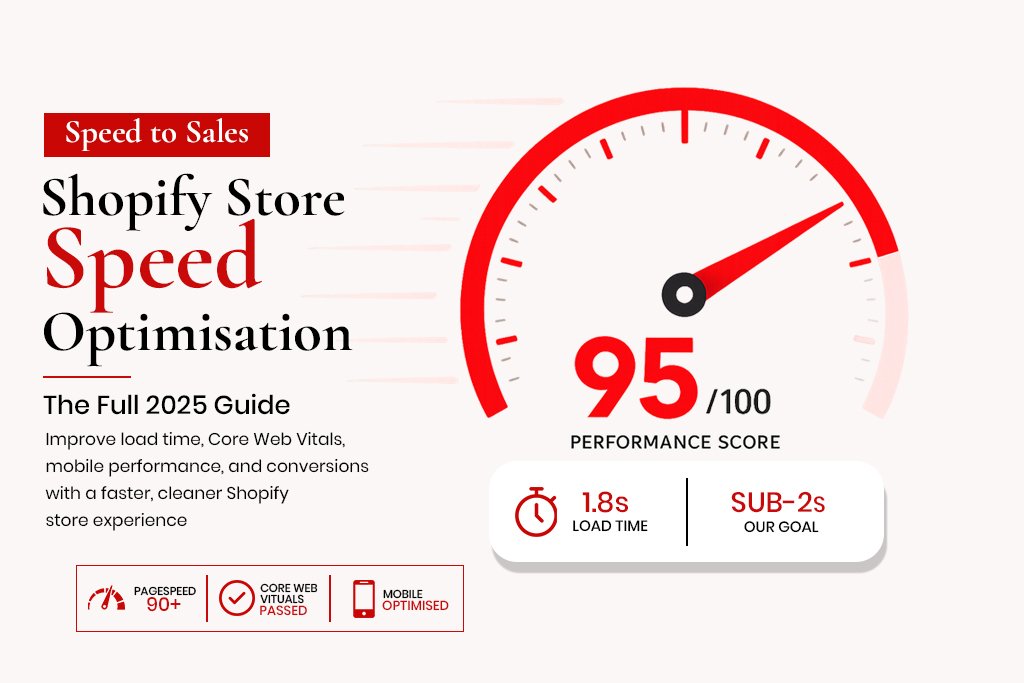
Shopify Store Speed Optimisation: The Full 2025 Guide to Sub-2-Second Load Times Shopify’s hosted infrastructure is fast by default – it uses a global CDN, handles server maintenance, and processes payments at scale without the merchant doing anything. Despite this, a significant percentage of Shopify stores load slowly. Not because of Shopify’s servers, but because of what merchants install on top of them. Apps, heavy themes, unoptimised images, embedded videos, third-party scripts, custom fonts, tracking pixels – every one of these adds to load time. And load time matters in two ways that directly affect revenue: it affects your Google rankings through Core Web Vitals, and it affects your conversion rate because visitors abandon slow sites. According to Google’s research, a site that loads in 1 second converts 3x better than a site that loads in 5 seconds. On mobile, where the majority of Shopify traffic originates, the gap is even wider. This guide covers everything you need to measure your store’s speed accurately, identify what is causing it to be slow, and fix it. How to Measure Shopify Store Speed Correctly Google PageSpeed Insights This is the only score that matters for SEO purposes because it reflects the same metrics Google uses in its ranking algorithm: Core Web Vitals. Test the mobile version – Google uses mobile-first indexing, so the mobile score is what affects rankings. The desktop score is usually significantly better and gives a misleadingly optimistic picture. A mobile PageSpeed score above 80 is good. Above 90 is excellent. Below 60 is actively hurting both rankings and conversions. Shopify’s Built-in Speed Report Shopify’s speed report in the admin panel (Online Store -> Themes -> Speed) gives a comparative score against other Shopify stores. It is useful for benchmarking, but it does not reflect Core Web Vitals and should not be used as your primary performance measurement. WebPageTest.org For advanced diagnosis, WebPageTest shows a waterfall chart of every resource your page loads, in the order it loads them. This is where you find the specific files causing the most delay – which third-party script is blocking page render, which image is the largest, which font is loading last. The 8 Most Common Shopify Speed Problems 1. Unoptimised Images This is the number one speed problem across Shopify stores. A product image uploaded at the original camera resolution of 4000x3000px and 8MB is served at 800x800px display size, but the browser still has to download the full file before it can show anything. The fix is to compress and resize every image before uploading. Target file size: under 200KB for product images, under 100KB for thumbnails. Format: WebP where possible, JPEG as a fallback. Tools: Squoosh (free, browser-based), Photoshop with Save for Web, or bulk conversion via ShortPixel. 2. Too Many Apps Every Shopify app you install injects code into your theme – typically JavaScript that loads on every page. Some of this code loads synchronously, meaning the browser stops rendering the page until the script has fully downloaded and executed. A store with 20 apps might be loading 15 scripts it does not need on pages where those apps are not being used. Audit your app list quarterly. For each app, ask: is this generating measurable revenue or operational value that outweighs its impact on page speed? If the answer is no, remove it. Most store owners are surprised by how many apps are installed that nobody actively uses. 3. Render-Blocking JavaScript Scripts that load in the head of a page block the browser from rendering visible content until they have downloaded and executed. The fix is to move non-critical scripts to load asynchronously (using the async or defer attributes) or to move them to the bottom of the page. Shopify’s architecture makes this more complex than on a standard HTML site, but it is achievable through theme.liquid modifications and app script management. 4. Heavy Theme Premium Shopify themes are often beautiful and feature-rich. They are also frequently slow because they include functionality for every possible use case – sliders, video backgrounds, mega menus, parallax effects, custom fonts – whether you use those features or not. If you are using 20% of your theme’s functionality, you are loading 100% of its code. Lightweight themes like Dawn (Shopify’s free default), Streamline, or Prestige (for higher-end stores) typically score significantly better on PageSpeed than feature-heavy multipurpose themes. If your current theme is scoring below 50 on mobile, a theme change is worth evaluating. 5. Multiple Custom Fonts Each custom font file is a download request. If your theme loads four font weights plus italic versions of each, that is eight font files loading before text can appear on screen. The result is invisible text during loading and a significant contribution to your LCP score. Use maximum two font families with two weights each. Host fonts locally rather than loading from Google Fonts – this removes an external DNS lookup and keeps the font loading within your CDN. 6. Embedded Videos A YouTube or Vimeo embed on a product page loads a significant amount of third-party JavaScript just to display the video thumbnail. Use a facade – a static image that looks like the video player but does not load any JavaScript until the visitor actually clicks play. 7. Unused CSS Themes ship with CSS for every feature they offer. If your store does not use a sidebar, a mega menu, or a product comparison table, the CSS for those features is still loading on every page. Tools like PurifyCSS or UnCSS can identify and remove unused CSS, though this requires careful testing. 8. No Lazy Loading Images below the fold – product grids, related products, footer images – should not load when the page first opens. They should load as the visitor scrolls toward them. Shopify’s Dawn theme implements lazy loading by default. Many older themes do not. Step-by-Step: Shopify Speed Optimisation Process Run PageSpeed Insights on your homepage, best-selling product page, and main collection page (mobile view). Record
The Complete eCommerce SEO Strategy

eCommerce SEO focuses on optimizing online stores to attract more organic traffic and increase sales. It combines site structure, product optimization, and technical SEO to drive long-term revenue growth.